通过Windows 2012 IIS设置邮件服务器

2026-04-25 18:32:36

1、启动Server Manager。

通过Windows 2012 IIS设置邮件服务器

2、添加“角色和功能”(Add Roles and Features)。

通过Windows 2012 IIS设置邮件服务器

3、选择“Role-based or feature-based installation”

通过Windows 2012 IIS设置邮件服务器

4、选择服务器。

通过Windows 2012 IIS设置邮件服务器

5、点击Next到Feature,然后选择SMTP。

通过Windows 2012 IIS设置邮件服务器

6、一直点击Next,进行安装。

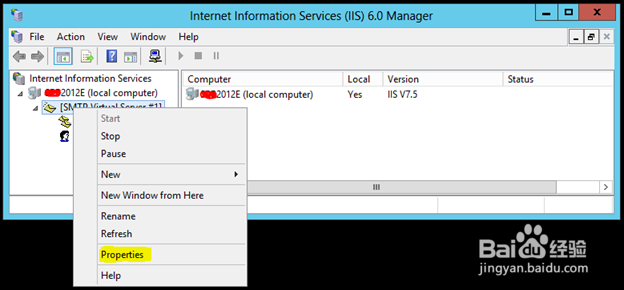
1、启动IIS。

2、右击SMTP Virtual Server #1,选择Propertis。
通过Windows 2012 IIS设置邮件服务器

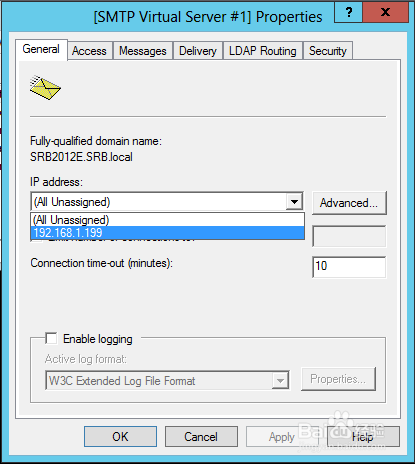
3、选择IP地址。

通过Windows 2012 IIS设置邮件服务器

4、点击Connection...以及Relay...设置IP地址。

通过Windows 2012 IIS设置邮件服务器

5、在Delivery下设置外部域名。

通过Windows 2012 IIS设置邮件服务器

相关推荐
  • 阅读量:126
  • 阅读量:136
  • 阅读量:171
  • 阅读量:63
  • 阅读量:70
  • 猜你喜欢