win10怎么卸载microsoft store安装应用商店
1、卸载的方法是 首先点击电脑系统左下角的开始 在找到 windows powershell 点击进去

2、在powershell界面输入下面命令 在回车 get-appxpackage *store* | remove-Appxpackage

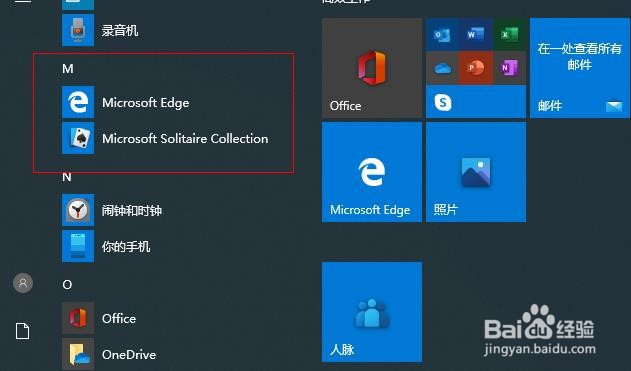
3、现在已经卸载了 在开始菜单里面找不到 microsoft store 了
1、刚才说了卸载现在说一下安装吧 点击电脑系统左下角的开始 在找到 windows powershell 点击进去

2、在powershell界面输入下面命令 在回车
Get-AppXPackage *WindowsStore* -AllUsers | Foreach {Add-AppxPackage -DisableDevelopmentMode -Register "$($_.InstallLocation)\AppXManifest.xml"}

3、等待一下 他会自动安装 没有报红色的出来就说明安装成功了

4、现在点击开始进去 可以找到 microsoft store 了

阅读量:143
阅读量:163
阅读量:95
阅读量:151
阅读量:165