Anaconda下载安装同时安装TensorFlow
1、输入www.anaconda.com进入官网下载,但是很慢,建议去国内的镜像

2、国内的镜像地址是https://mirrors.tuna.tsinghua.edu.cn/anaconda/archive/
版本介绍:例如Anaconda3-4.2.0-windows-x86.exe,-3是对于Python3版本,Windows-x86是32位系统,Windows-x86_64是64位系统
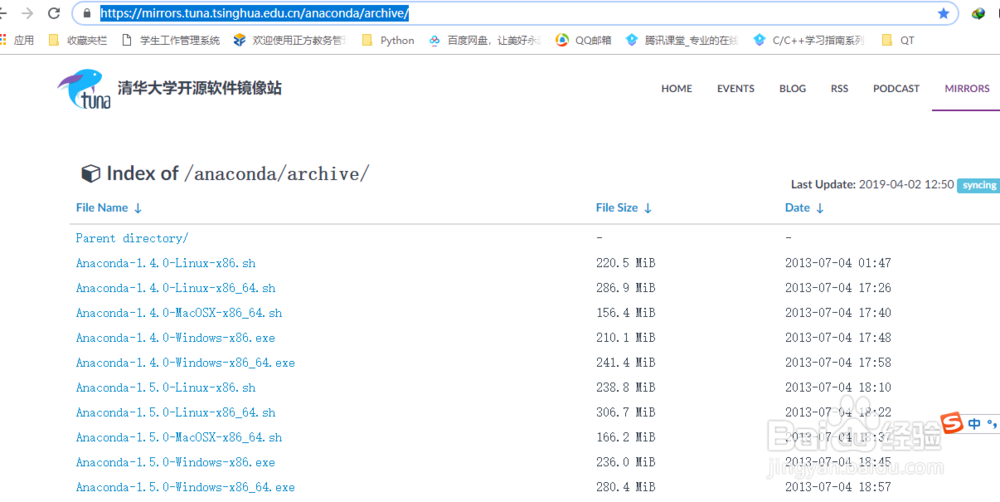
3、选择自己需要的版本,点击即可下载
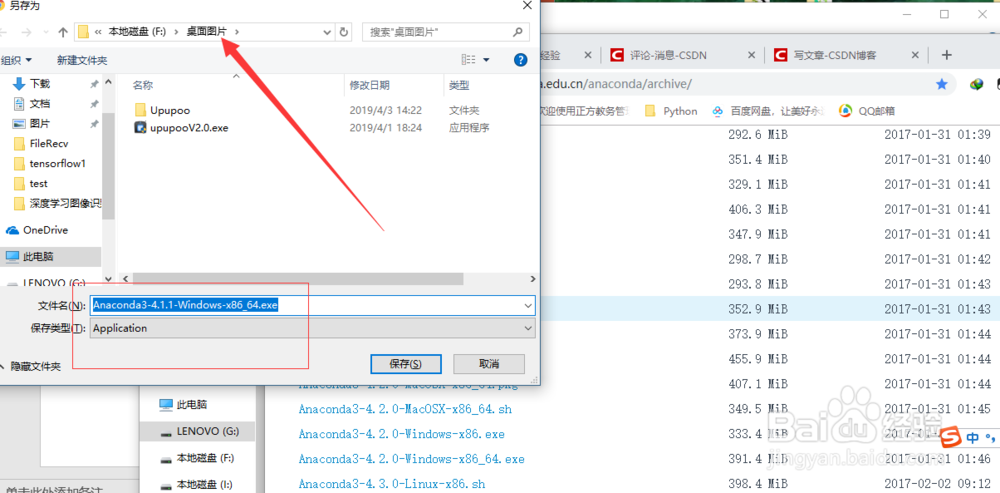
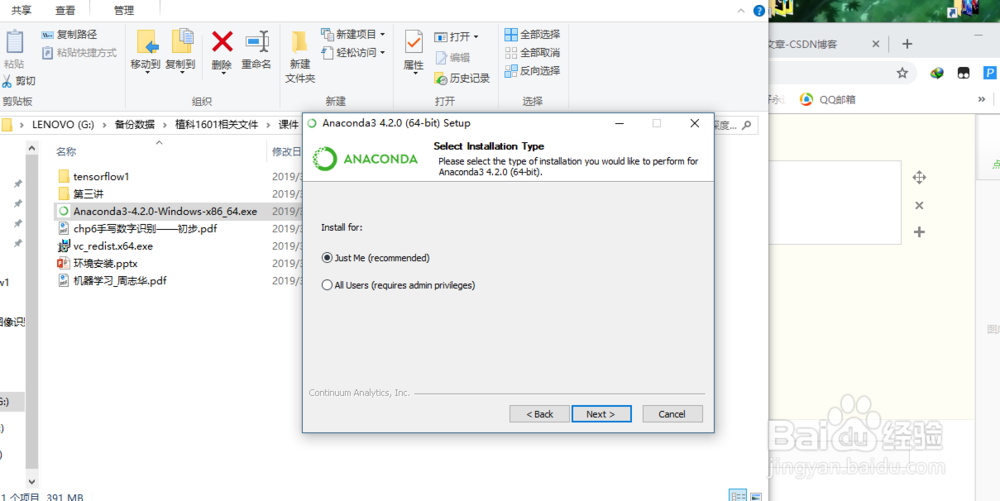
4、双击程序即可安装,同意协议,选择路径,添加环境变量path,我想这个应该是没难度的,最后安装成功,准备安装TensorFlow
5、首先得更新Anaconda国内镜像源,国外的太慢,一般还是用清华大学的。
我们打开Anaconda prompt

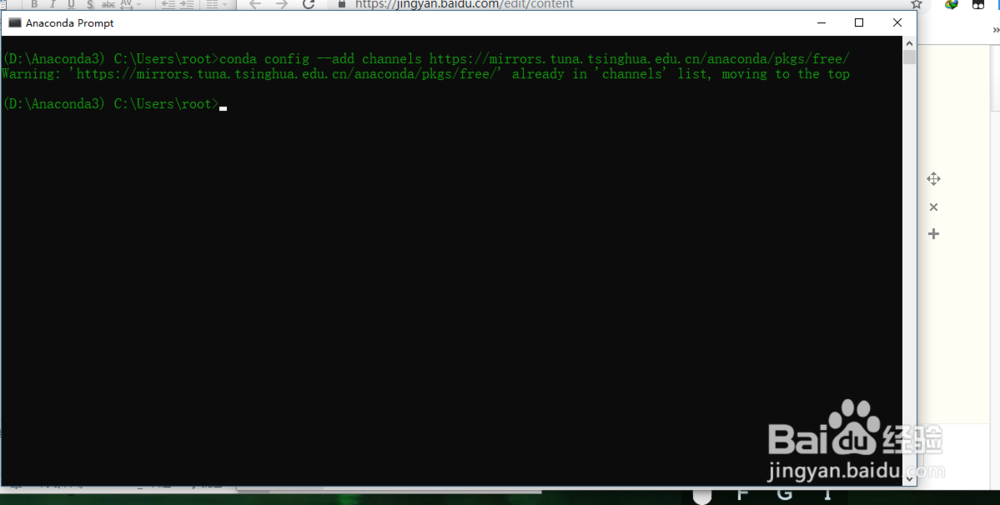
6、输入命令:conda config --add channels https://mirrors.tuna.tsinghua.edu.cn/anaconda/pkgs/free/
我这里是已经添加了的,所以是这样显示warning
7、然后执行命令:conda config --set show_channel_urls yes

8、打开C盘输入*.condarc,然后,可以用记事本打开此文件
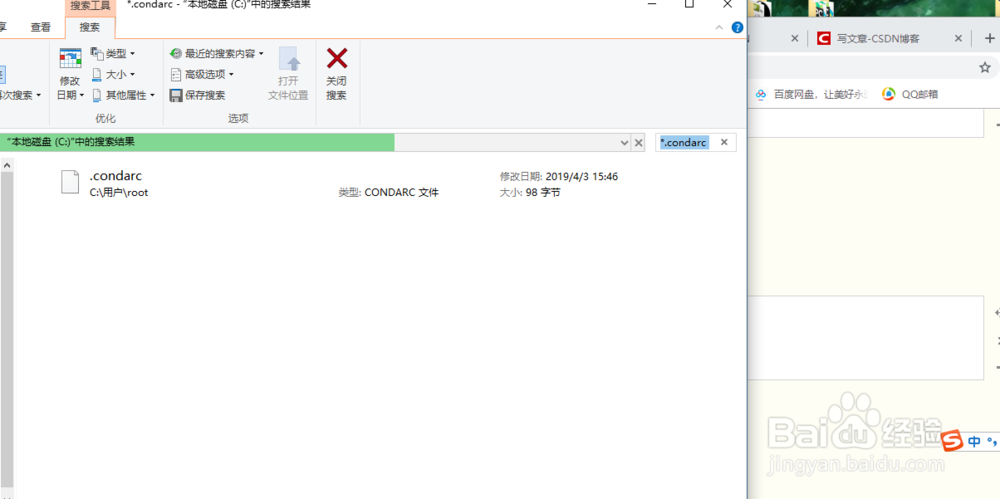
9、删掉这段,保存退出

10、安装TensorFlow普通版命令:conda install tensorflow
安装GPU版本:conda install tensorflow-gpu
我已经安装过

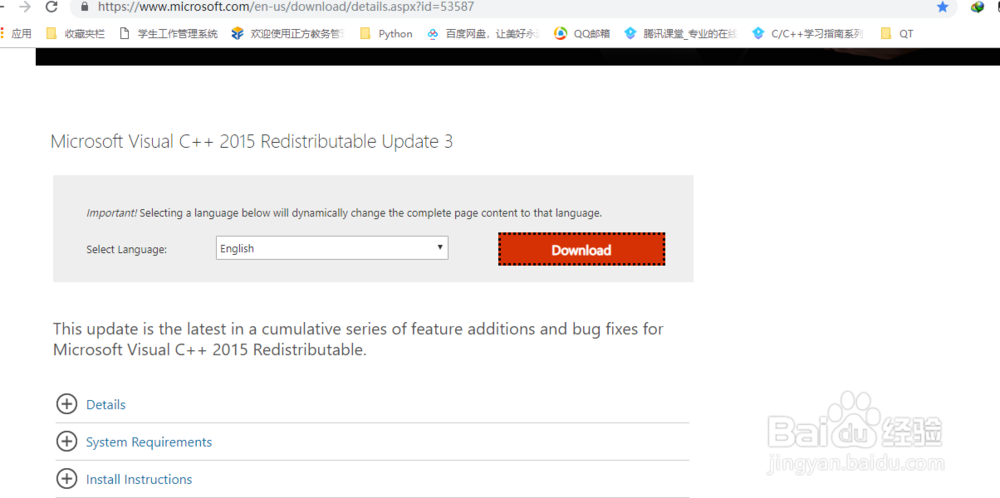
11、安装过程如果出错,可下载此程序再试,且此程序必须在path环境变量里面
www.microsoft.com/en-us/download/details.aspx?id=53587
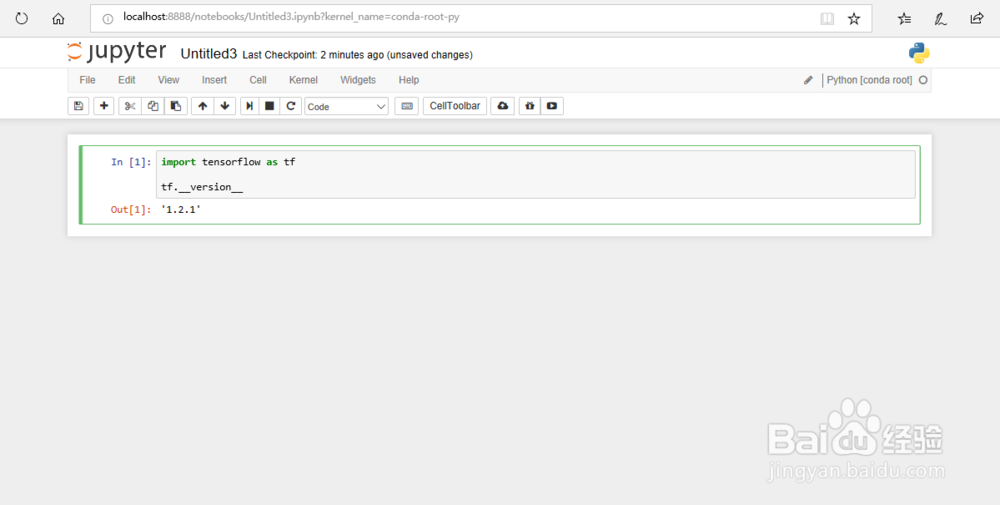
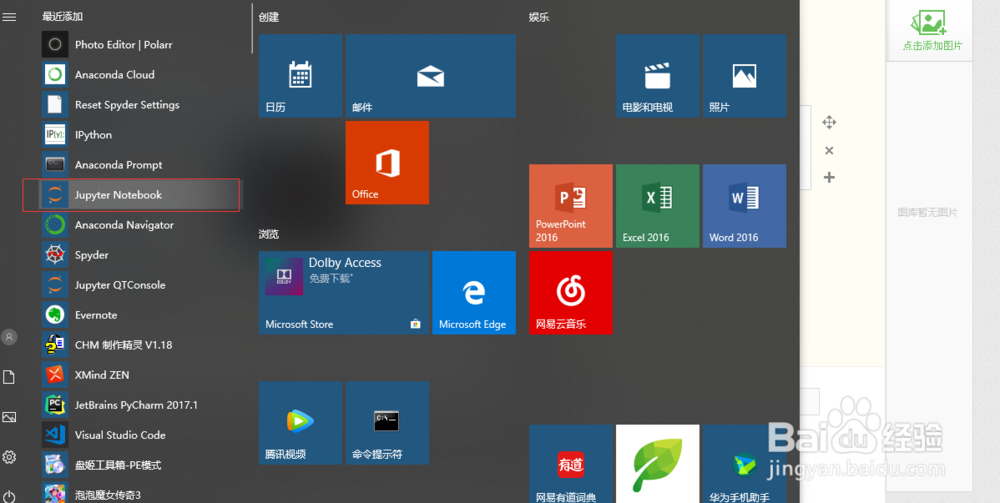
12、验证TensorFlow是否安装成功,打开jupyter
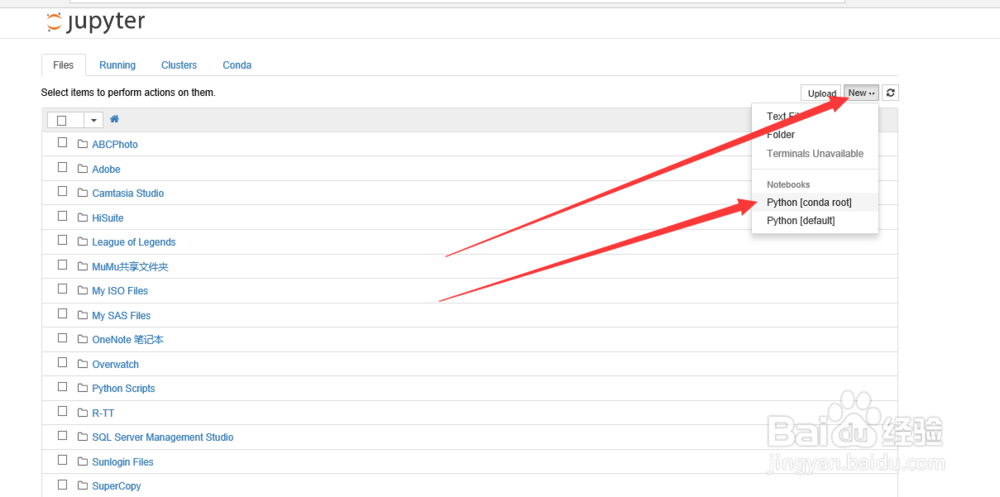
13、打开new,选择python
14、输入
import tensorflow as tf
tf.__version__
这是双下划线
显示出来版本即成功了,