怎样在powerpoint中创建连续箭头流程
1、打开Powerpoint 2007软件,进入其主界面中;

2、将单击此处添加标题、副标题的两个输入框删除,出现一个空白页面;

3、点击插入菜单,选择SmartArt工具;

4、打开选择SmartArt图形页面;

5、在流程类别中找到并点击连续箭头流程,按确定;

6、在pwoerpoint中插入一个空的连续箭头流程;
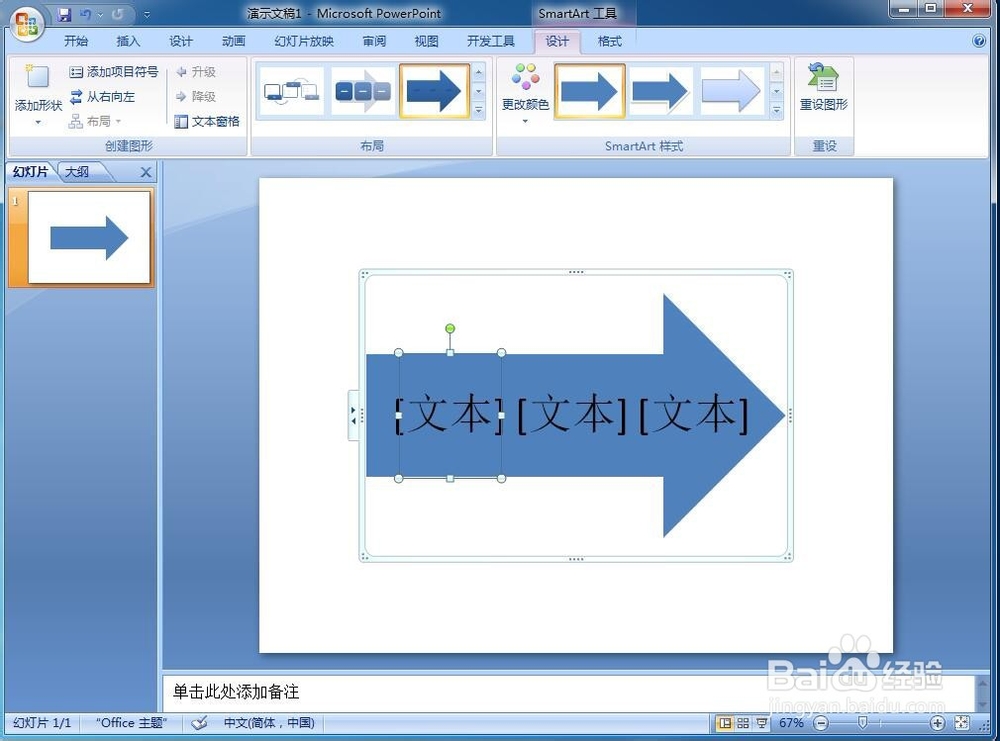
7、给连续箭头流程填充好文字;

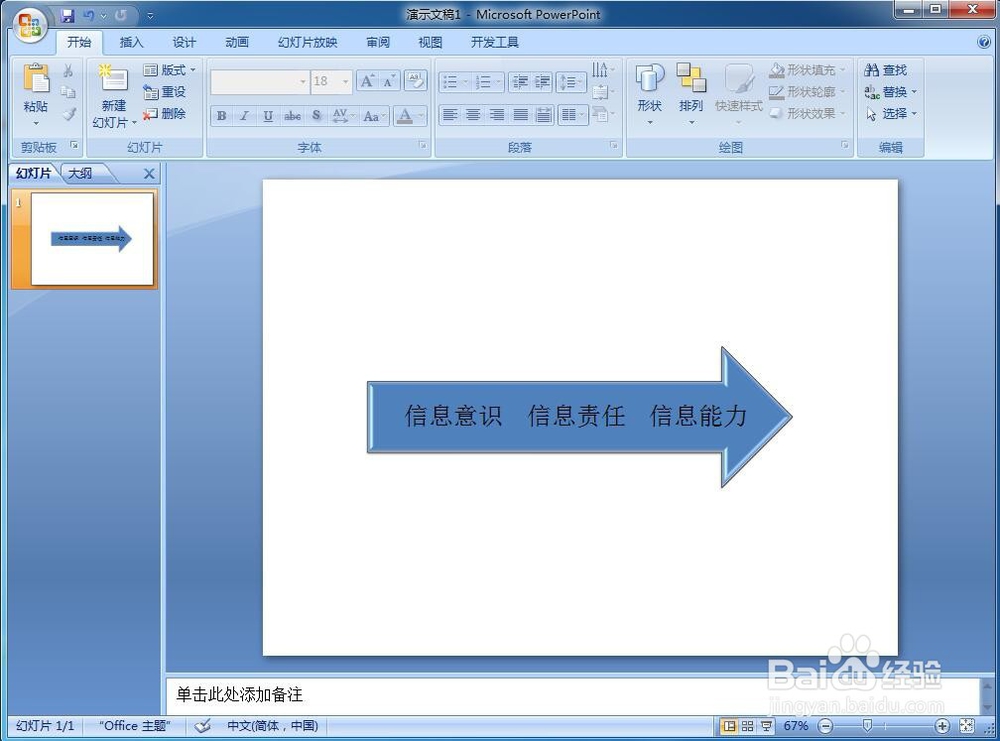
8、添加好一种SmartArt样式;

9、我们就在powerpoint中创建好了一个连续箭头流程。
1、打开PPT,将主、副标题输入框删除;
2、点击插入,选择SmartArt工具;
3、打开选择SmartArt图形页面,在流程类别中点击连续箭头流程,按确定;
4、给连续箭头流程填充文字,添加SmartArt样式。
阅读量:155
阅读量:67
阅读量:48
阅读量:82
阅读量:131